Download & Install a
Trial Version of CCTheater
Download Instructions for Demo Software
**NOTE** The software you download will be fully functional without a license key, right up until the final output. Until you become a paying customer, the displayed captions will appear in "Elmer Fudd dialect" when the software is run without a license key. You can use all features and get acquainted with the software's functionality, but the captions will not be usable for a real audience. Also note that running CCTheater requires installation of NodeJS. Use the link below to download the NodeJS installer.
Download NodeJS Installer
Download CCTheater Installer
Watch Tutorials
Quick Start Instructions:
1. Launch the CC Theater application and when prompted for the registration/license information [FILL IN].
2. Develop a caption script from your play script:
Delete stage directions etc.
Break longer lines into shorter lines with hard returns.
Leave a blank line between captions.
Export the script file in Plain text (UTF-8 unicode) format with Linefeeds using MSWord or other suitable text editor.
3. Open the caption file:
Either use the File/Open File... menu item or drag/drop your file in the Guide Track area to open. The script will appear in the Guide Track area, and a Stream Window will appear below the main window. Make sure that the green Connect Light is lit. This indicates that CC Theater is communicating with its web server.
4. For closed captions (watched on personal devices): Point the browser on the mobile device to the URL corresponding to the TCP/IP number of the CCTheater computer( the local TCP/IP number of the machine is shown near the top left of the main window) and an optional port number (the default is port 80) as shown in the Tools/Options menu Text Server tab. (e.g. http://192.168.1.42).
Note: If a firewall is enabled on the CC Theater computer, make sure to allow in- and outbound connections on that port.
For open (projected) captions: Open a browser on the CCTheater computer by clicking the Tools/Open Projector Page menu item and select the desired language stream. If you only have one script file open there will only be one language to select.
Position the browser window on your projector monitor and maximize the window (typically F11).
5. Deliver captions: As the actors speak their lines, send each caption by pressing the space bar (or use Tools/MOUSE-MODE and click the mouse on the window)
Screen Grabs from CCTheater:
This is the main window of CCTheater operator's view. It allows you to load a script, gate out captions as lines are spoken, and start/stop pre-show looping. There are several user interface components.

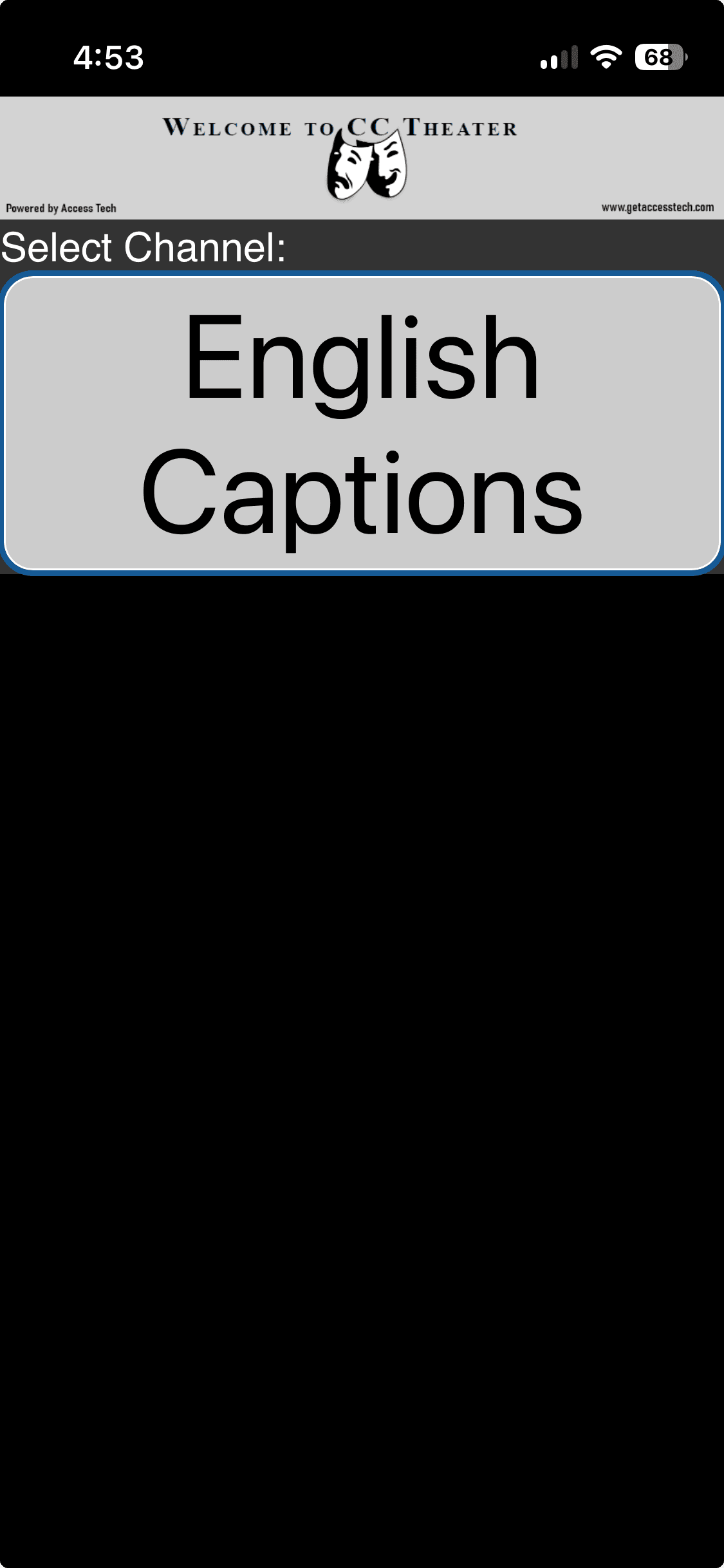
The two images below show what a patron might see on a smart phone with its browser pointing to the web server running CCTheater. The first figure shows the channel picker, and the second figure shows the browser displaying the most recent caption.


CCTheater is a product of AccessTech LLC.
© 2026 CCTheater. Accessibility for every performance.